How to Fix Delta iOS “Untrusted Enterprise Developer” Error (October 2026)
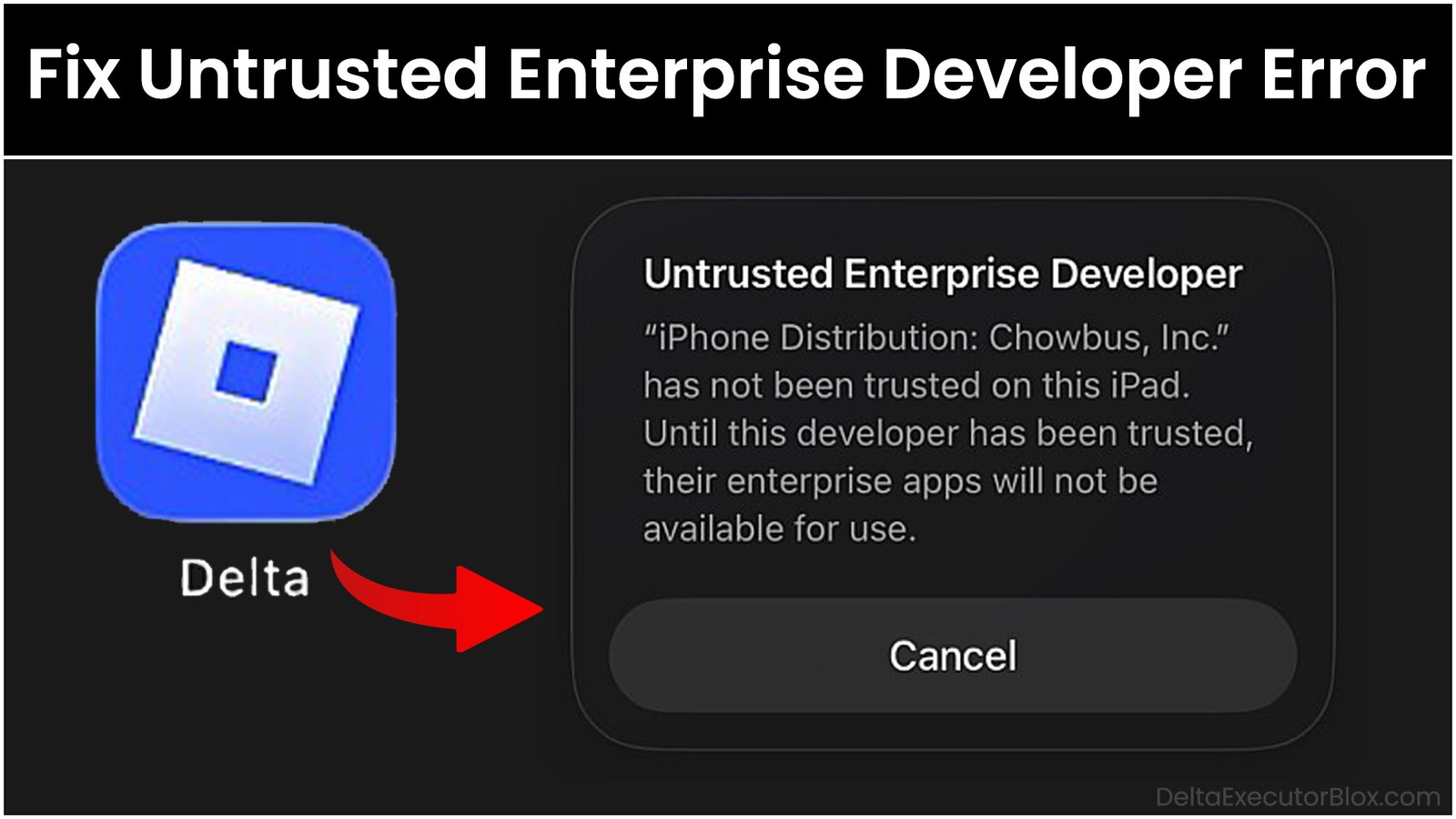
If you are a new Delta Executor user, regularly use Delta, or have recently installed or updated Delta iOS on your iPhone or iPad and are getting “Untrusted Enterprise Developer” error when trying to open Delta app, you’re in the right place.
Page Contents:
When you try to launch Delta iOS, you may see the following message:
“Untrusted Enterprise Developer: ‘iPhone Distribution: Chowbus, Inc.’ has not been trusted on this iPhone/iPad. Until this developer has been trusted, enterprise apps will not be available for use.”
Note: The distributor or developer name shown in the Enterprise Developer section may vary randomly when you install Delta iOS. In my case, it appears as “Chowbus, Inc.”, but you may see a different developer name on your iPhone or iPad. This is normal, so don’t worry if the name displayed on your device is different.
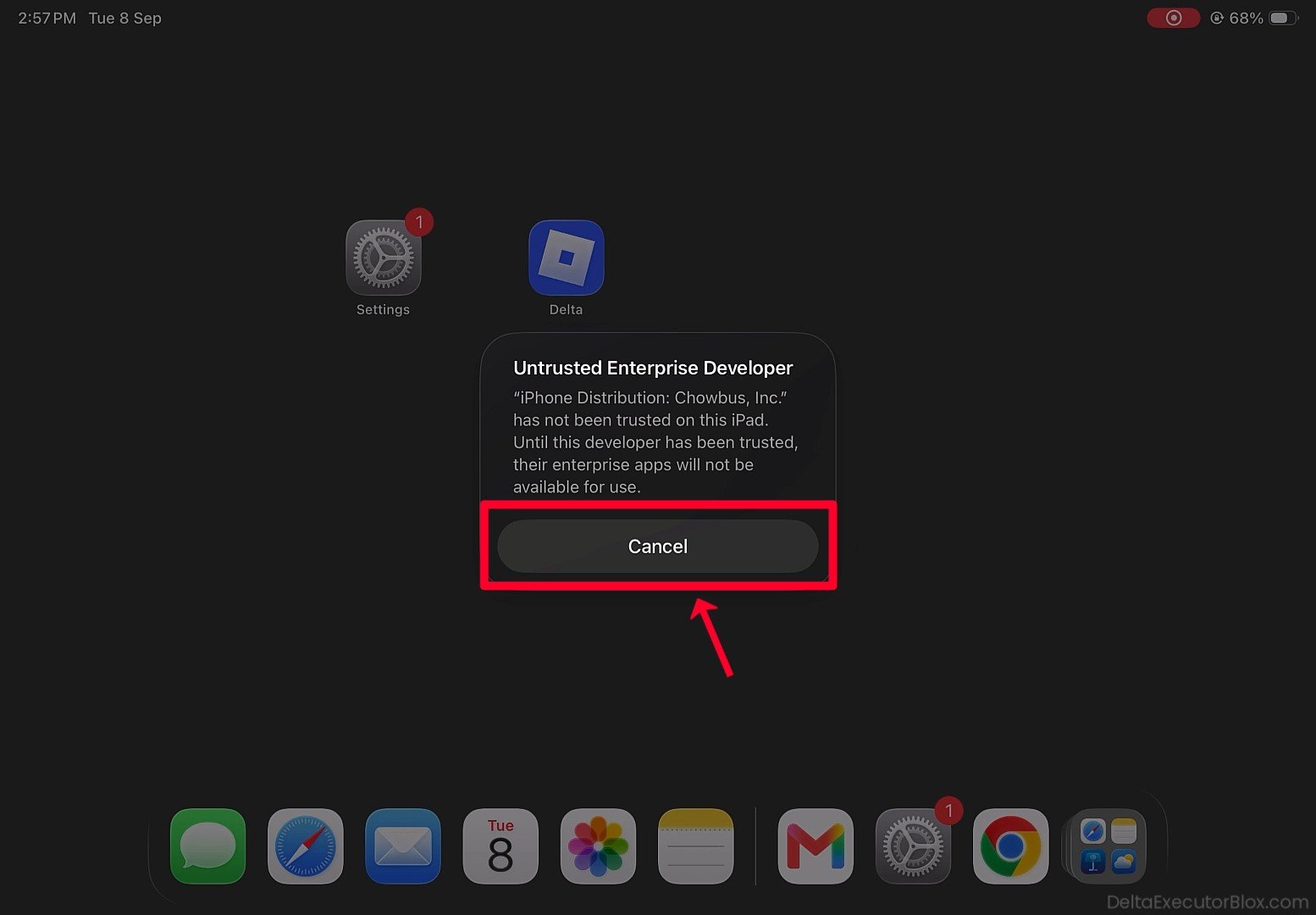
You may also notice that the only option available is the “Cancel” button, preventing you from opening the app. Fortunately, you can fix Untrusted Enterprise Developer error on Delta iOS by following a few simple steps.
In this guide, we’ll show you how to fix Delta iOS “Untrusted Enterprise Developer” error on iPhone and iPad quickly and easily, so you can access the app again.
What is Delta Executor?
Delta Executor is a Roblox exploit tool developed by Delta Dynamics team. It allows users to run custom scripts within Roblox games, which can provide various in-game advantages. These scripts may automate tasks, unlock certain features, or help users progress through games without completing missions or tasks manually.
In simple terms, Delta Executor can make Roblox games feel similar to playing a modified version of the game, depending on the scripts being used.
What is Delta iOS?
Delta Dynamics team initially launched Delta Executor for Android only. However, as Delta Executor became more popular, many iOS users began requesting an iOS version. Although Delta Dynamics did not initially release Delta for iOS, the team later decided to develop a version specifically for iPhone and iPad users who wanted to use Delta on their iOS devices.
Delta iOS features a user interface similar to the Android version and is specifically designed for the iOS platform. Depending on the available installation method, users can install Delta Executor on iPhone or iPad directly or install it using an IPA file installer.
What is “Untrusted Enterprise Developer” Error on iOS?
“Untrusted Enterprise Developer” error can appear when you try to open an app installed on an iPhone or iPad from outside the official App Store. This happens because Apple uses security measures to prevent users from running apps from unverified or untrusted sources.
Since Delta Executor is not available through the official App Store, iOS users may encounter this error after installing Delta on their iPhone or iPad. To open the app, you may need to manually verify and trust the associated enterprise developer through your device’s settings.
Once the developer has been trusted, you can try opening Delta iOS again.
Why Does “Untrusted Enterprise Developer” Error Occur on Delta iOS?
There are several reasons why “Untrusted Enterprise Developer” error may appear when you try to open Delta iOS. Here are some of the most common causes:
- Newly Installed Delta: If you have recently installed Delta on your iPhone or iPad, you may need to manually verify and trust the associated developer before you can open the app.
- Delta Has Been Updated: When a new Delta update is released, you may need to uninstall the previous version and install the latest version. After reinstalling Delta iOS, you may also need to verify and trust the new developer certificate again.
- Expired Certificate: The developer certificate used by the previously installed version may have expired. In this case, you may need to trust a new certificate before Delta can be opened.
- Revoked Certificate: Apple may revoke an enterprise certificate, which can prevent the associated Delta app from launching. If the certificate has been revoked, reinstalling the app with a valid certificate may be necessary.
- Corrupted Certificate or App Installation: In some cases, the certificate or app installation may become corrupted, causing Untrusted Enterprise Developer error to appear.
- iOS Security Updates: A new iOS update may introduce security changes that affect how enterprise-signed apps are verified and trusted on your iPhone or iPad.
These are some of the main reasons why Delta iOS may show “Untrusted Enterprise Developer” error. Understanding the cause can help you choose the appropriate solution and get Delta running again.
How to Fix Delta iOS “Untrusted Enterprise Developer” Error? [Step-by-Step Video Tutorial]
How to Fix Delta iOS “Untrusted Enterprise Developer” Error? [Step-by-Step Guide with Screenshots]
Step 1: Open Delta app on your iPhone or iPad.
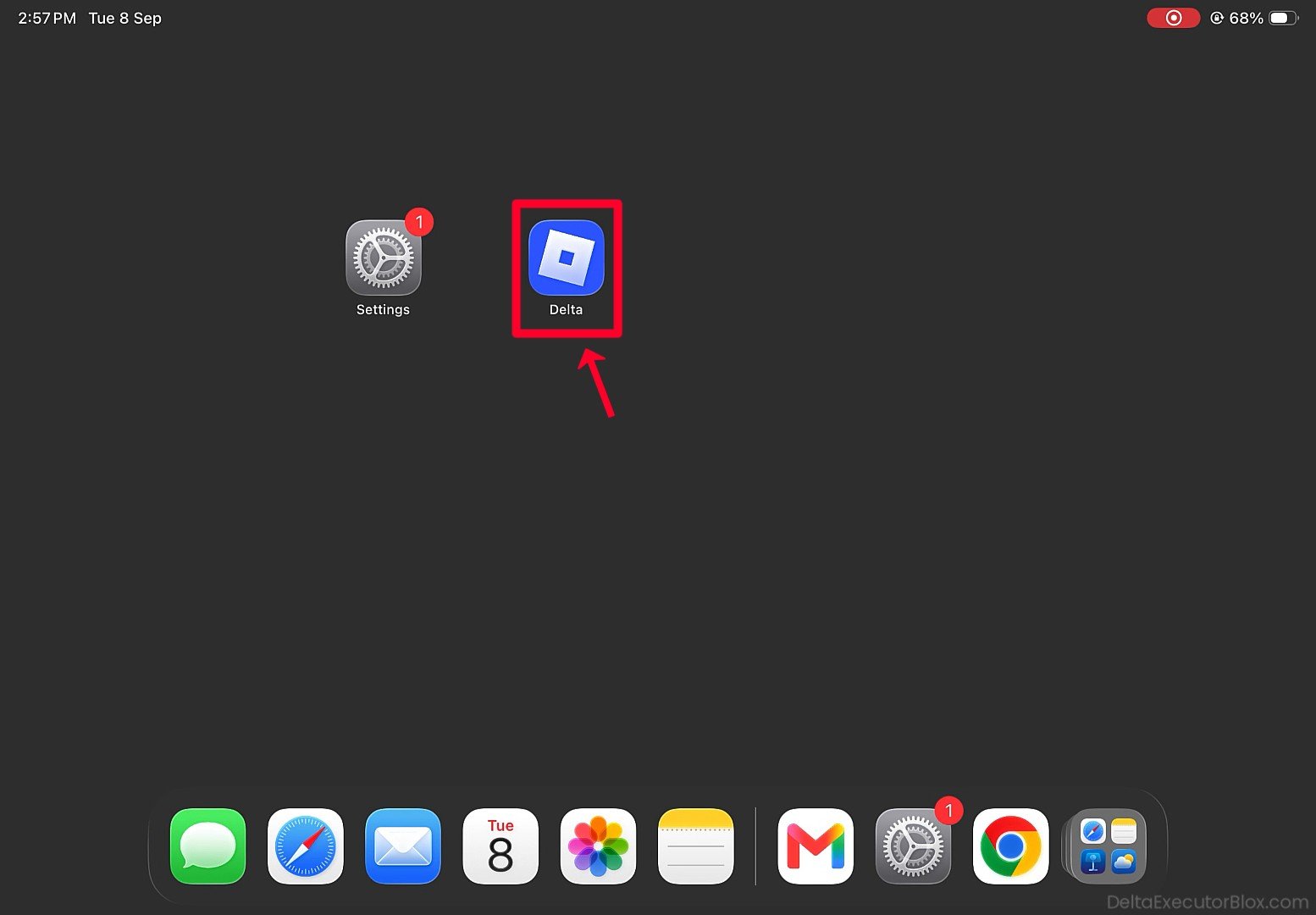
Step 2: “Untrusted Enterprise Developer” error screen will appear when you try to open Delta.
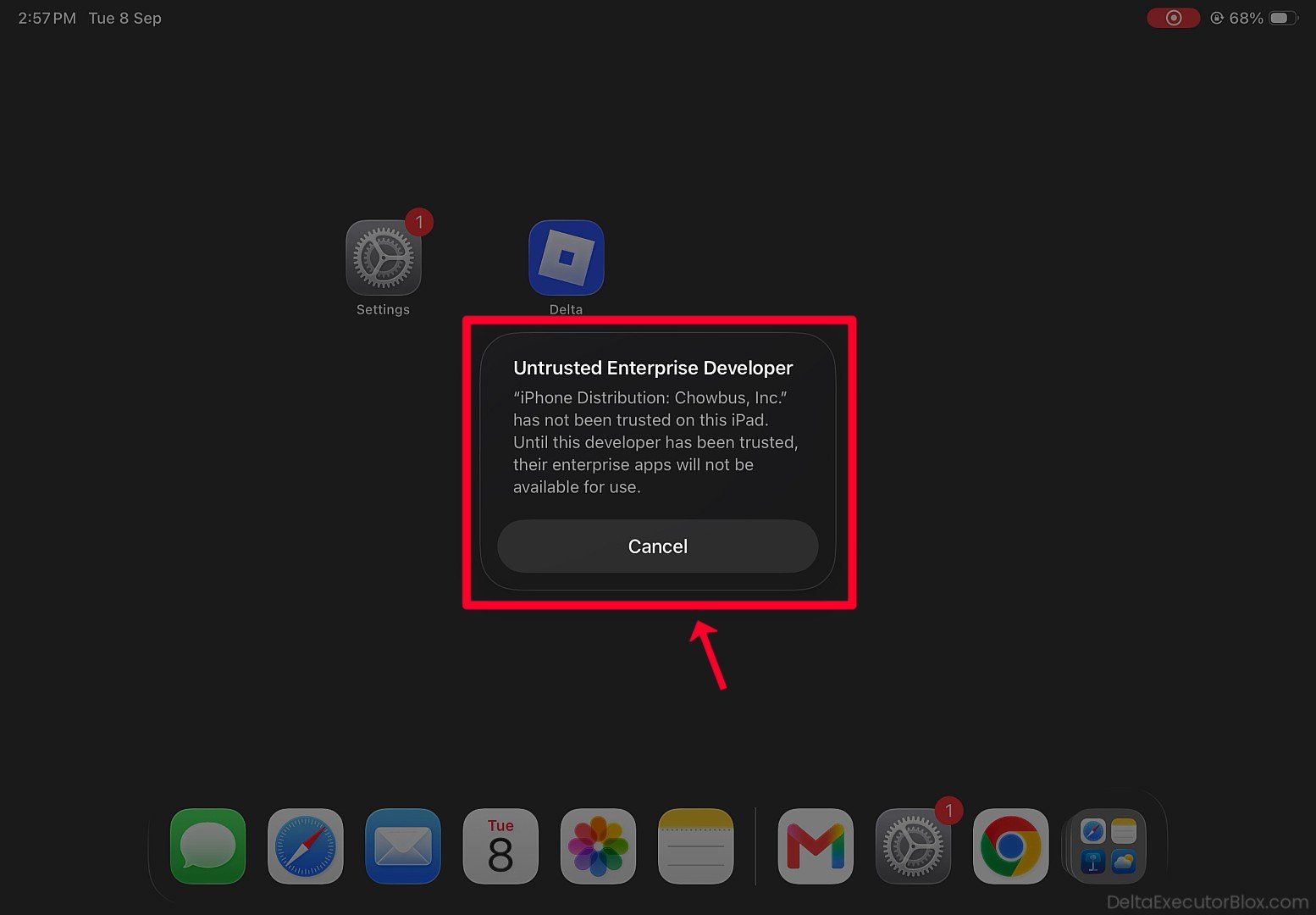
Step 3: Tap Cancel.
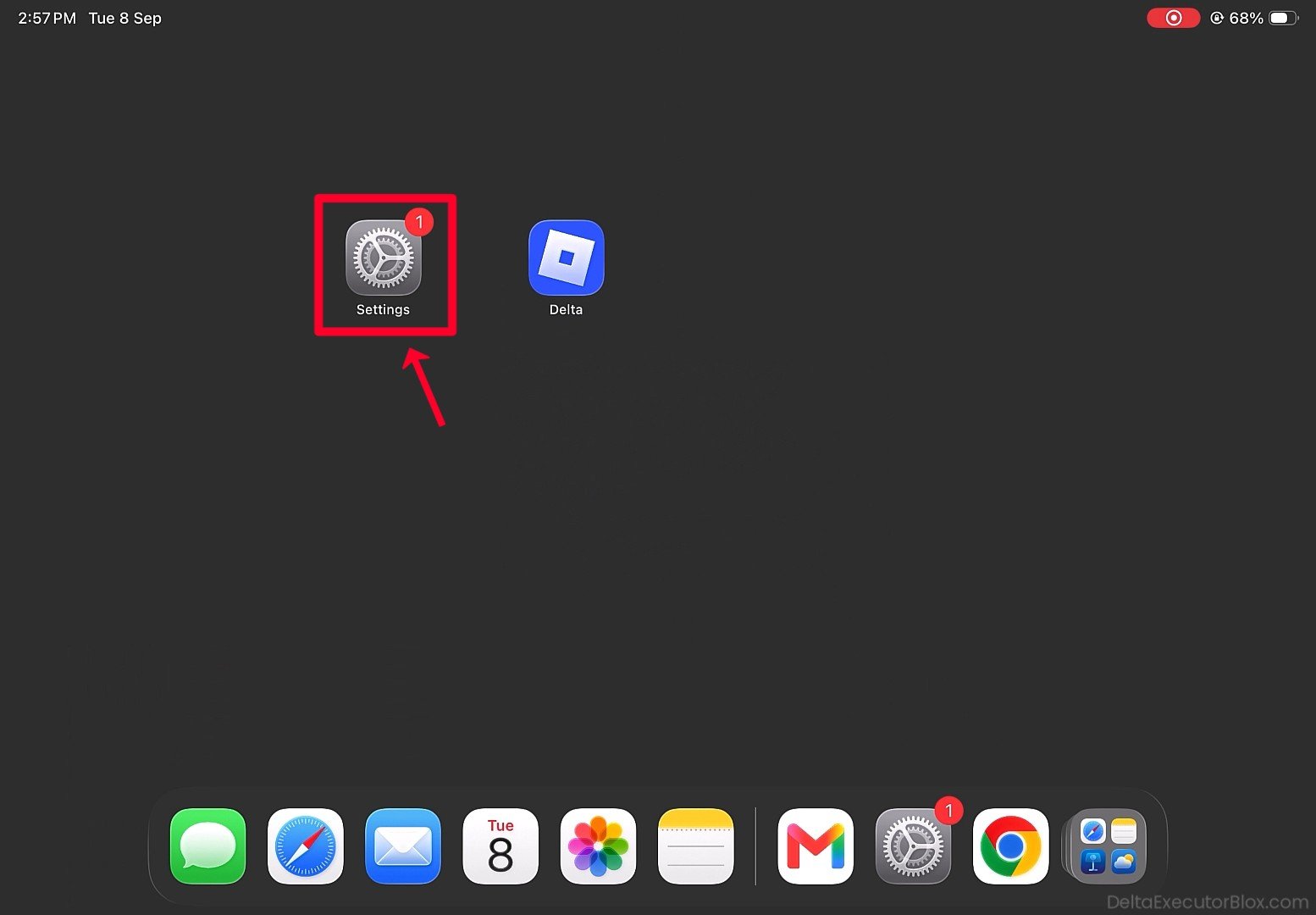
Step 4: Open Settings on your iOS device.
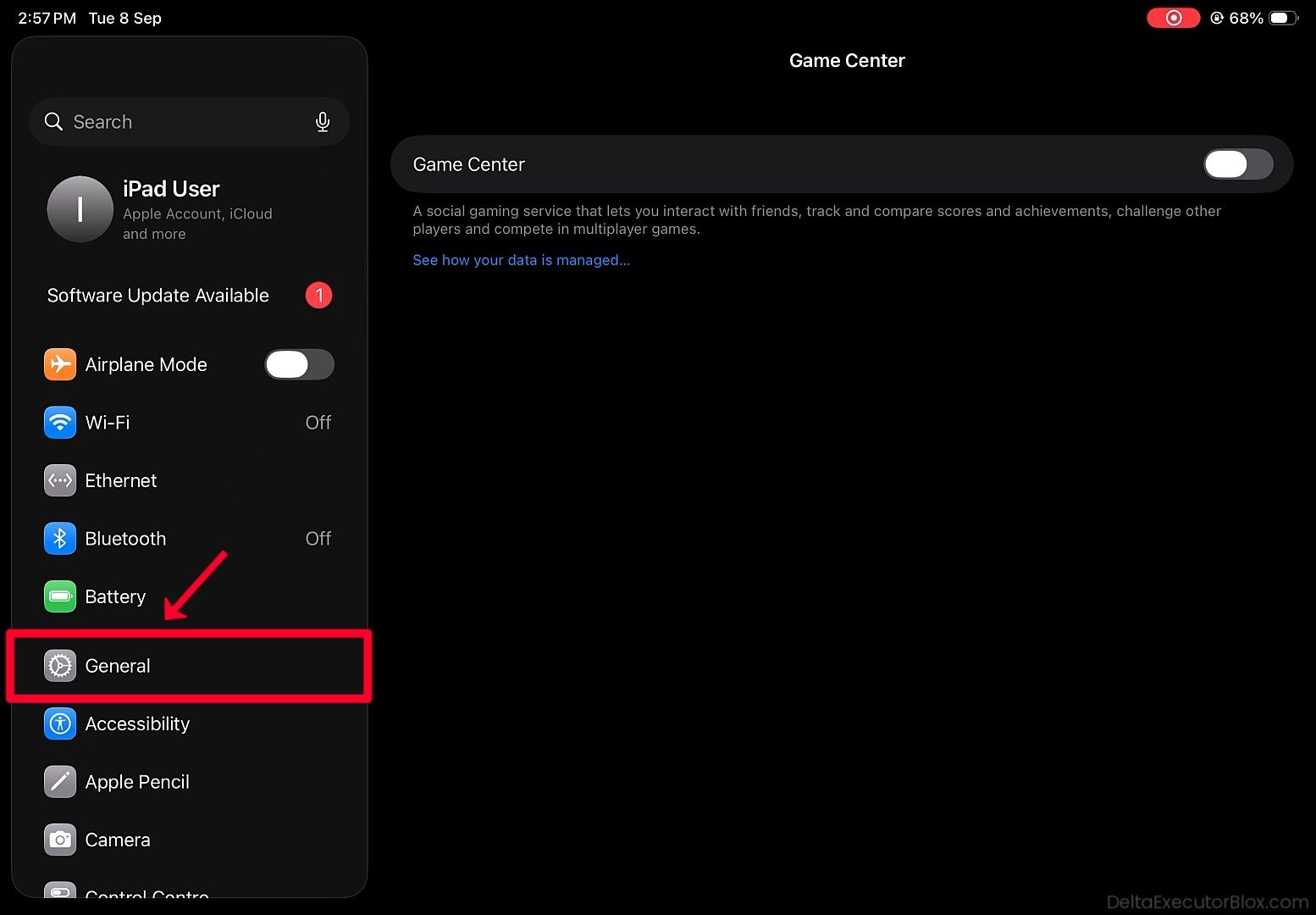
Step 5: Tap General.
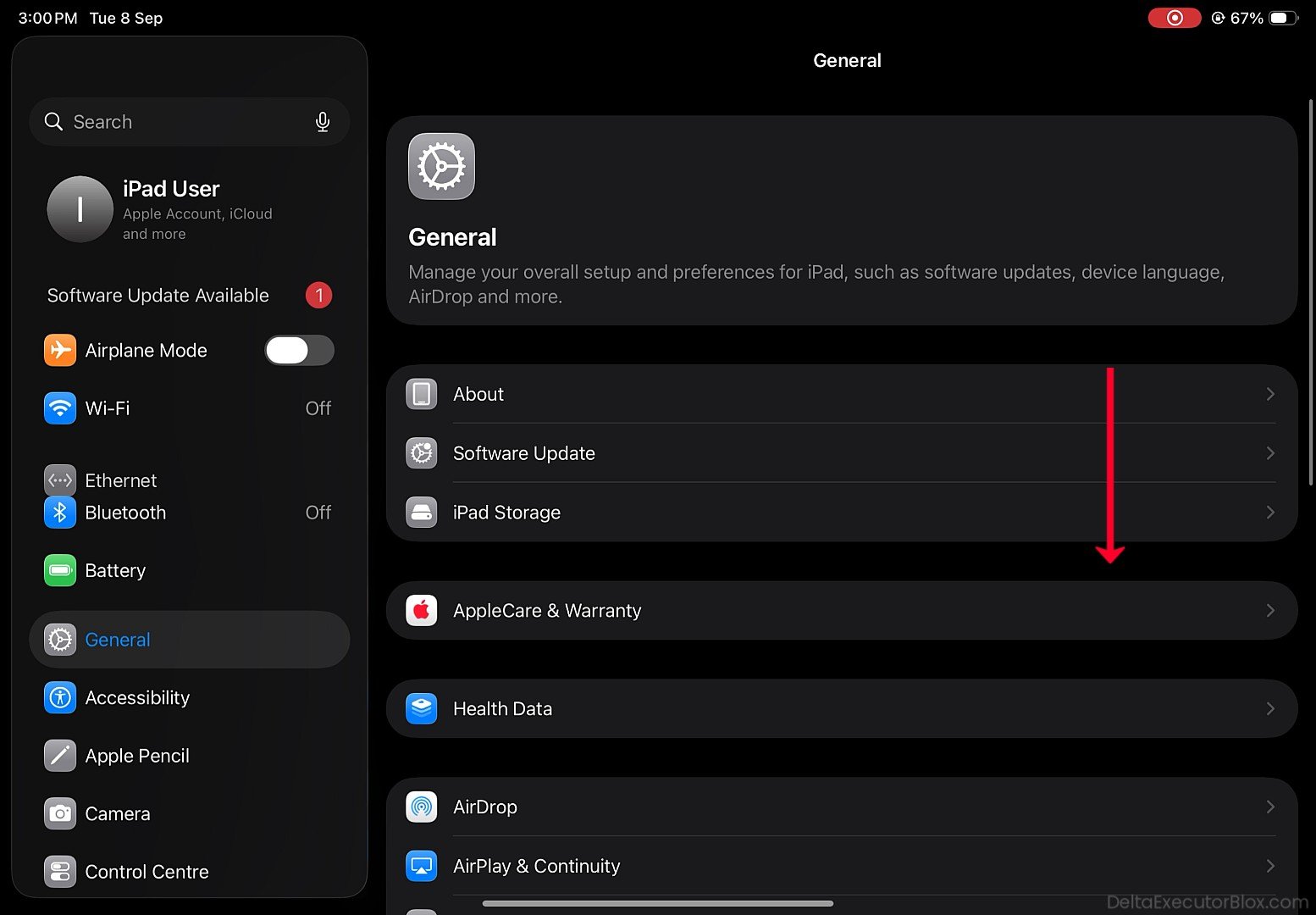
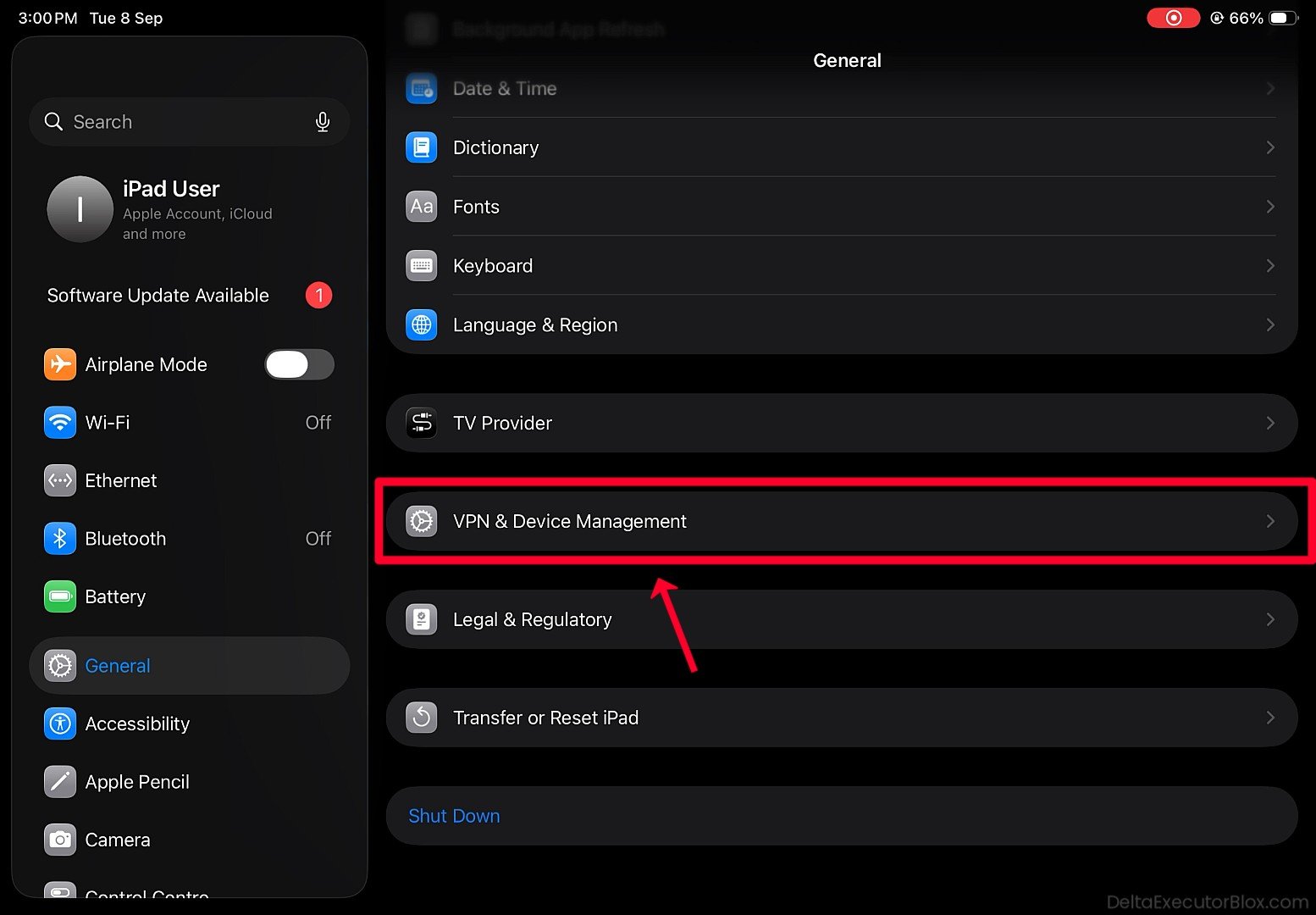
Step 6: Scroll down and find “VPN & Device Management”.
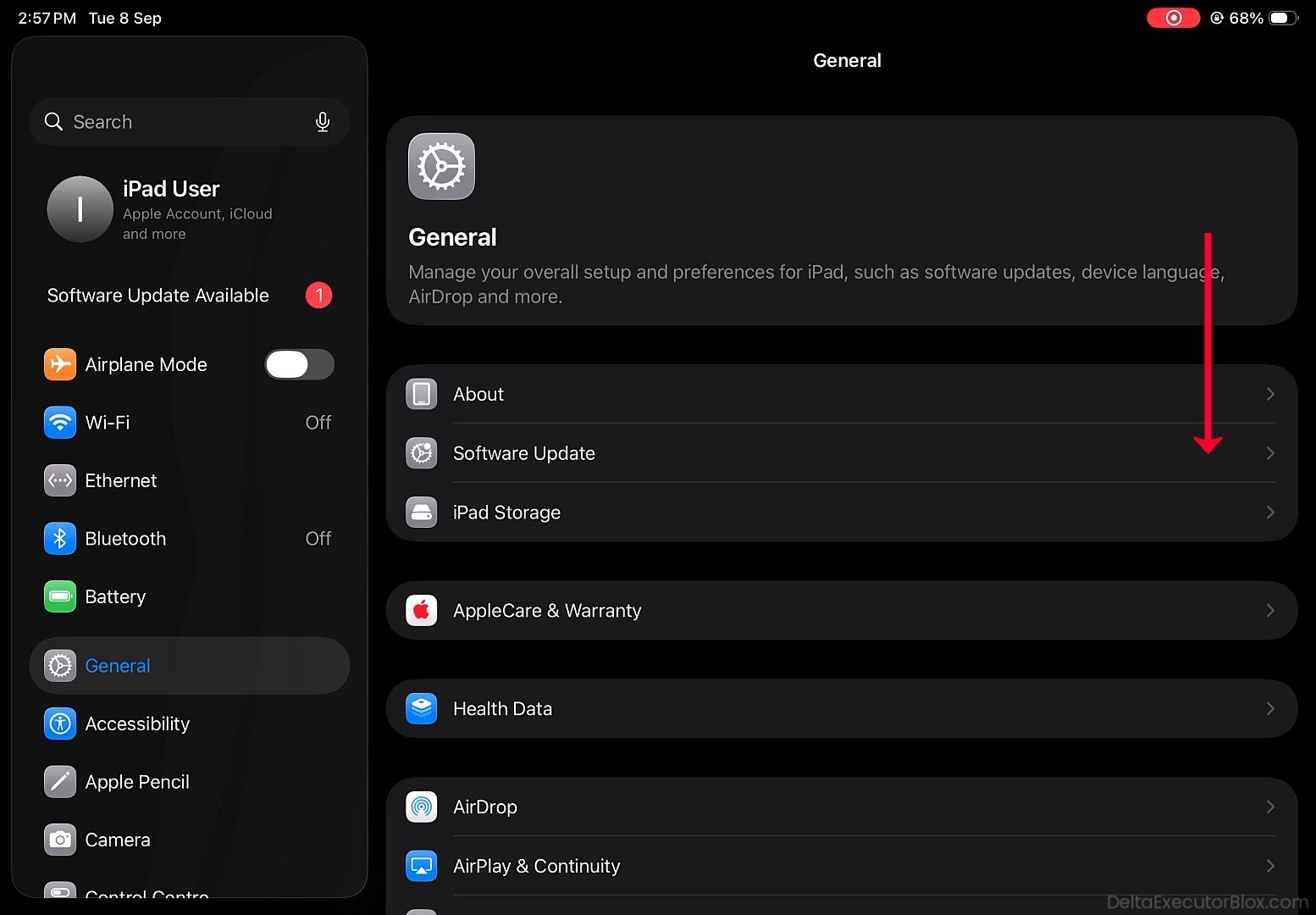
Step 7: Tap VPN & Device Management.
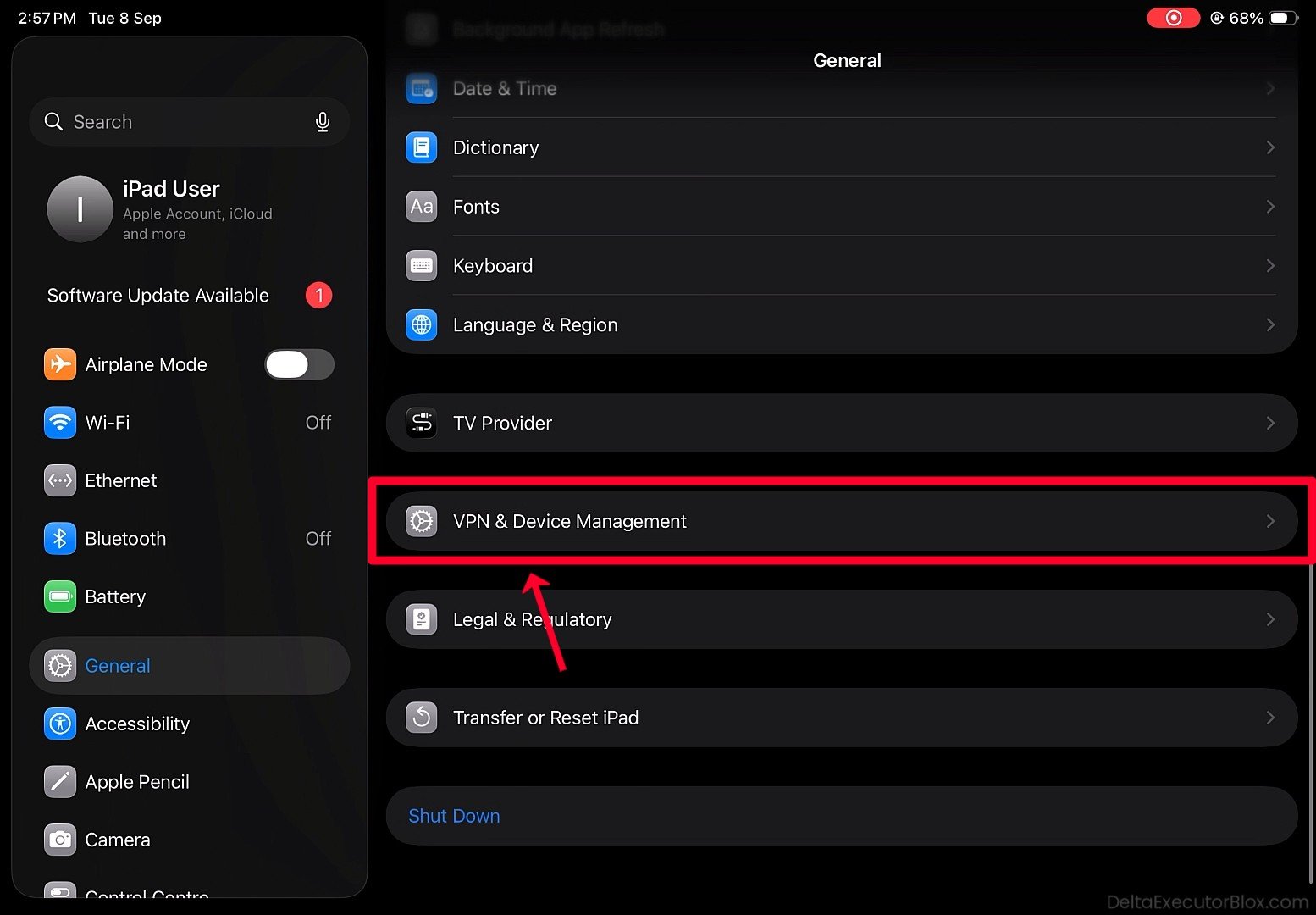
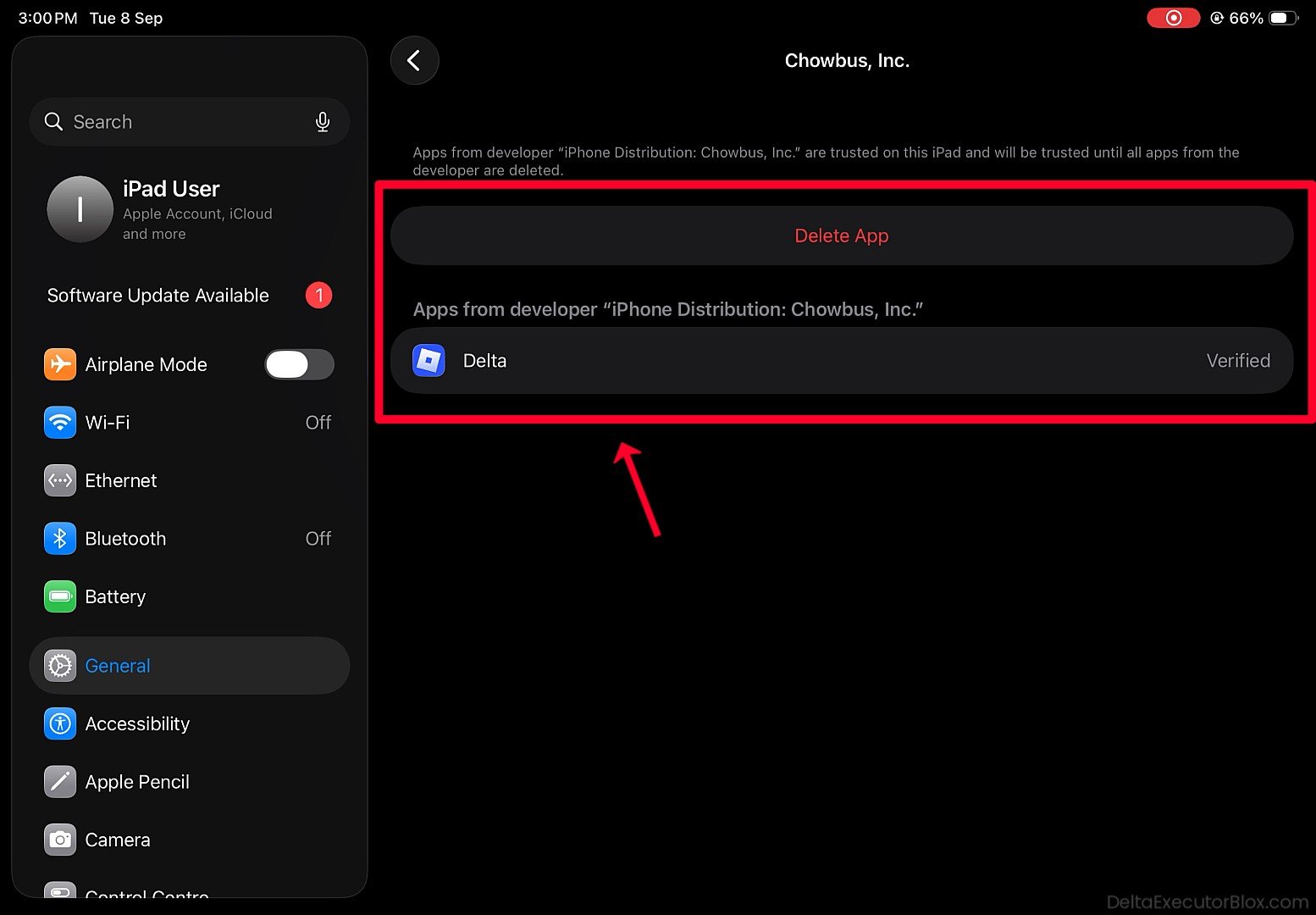
Step 8: Under Enterprise App, find the developer profile associated with Delta, which may be shown as Not Trusted.
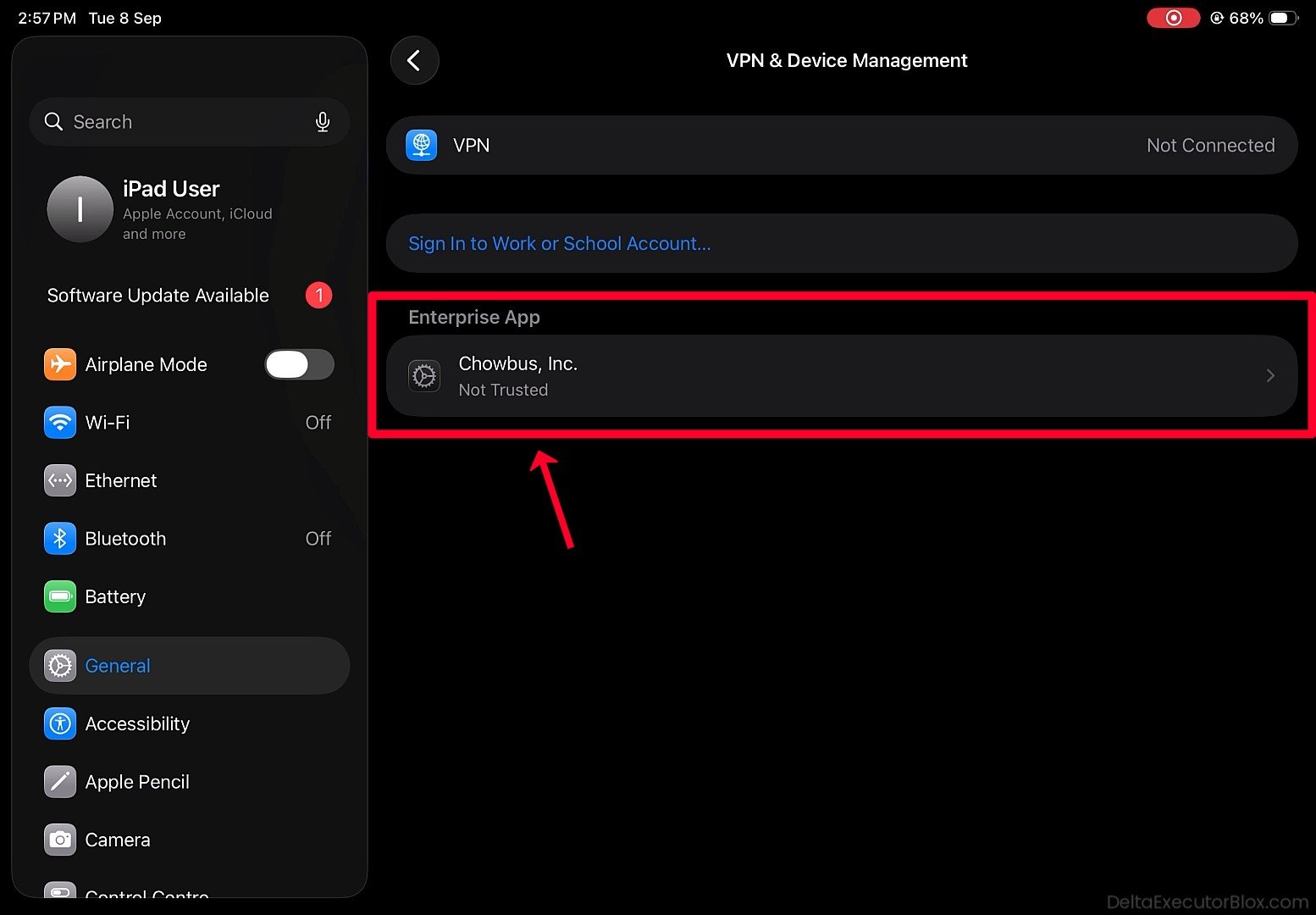
Step 9: Tap the developer profile, then tap the blue “Trust” button displayed above the Delta app icon.
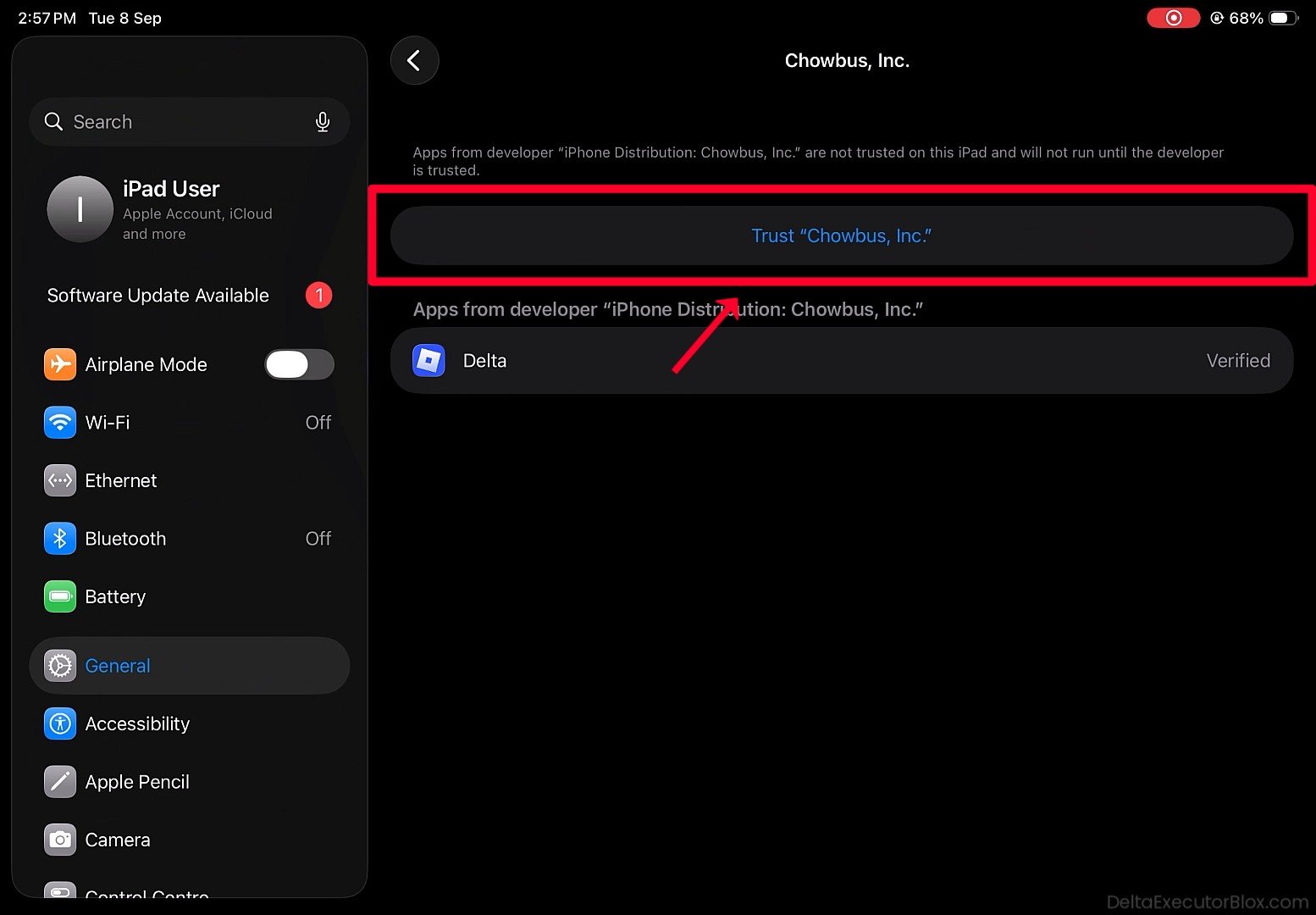
Step 10: Confirm the action if prompted. If Allow & Restart appears, tap it and allow your iPhone or iPad to restart so the developer profile can be verified.
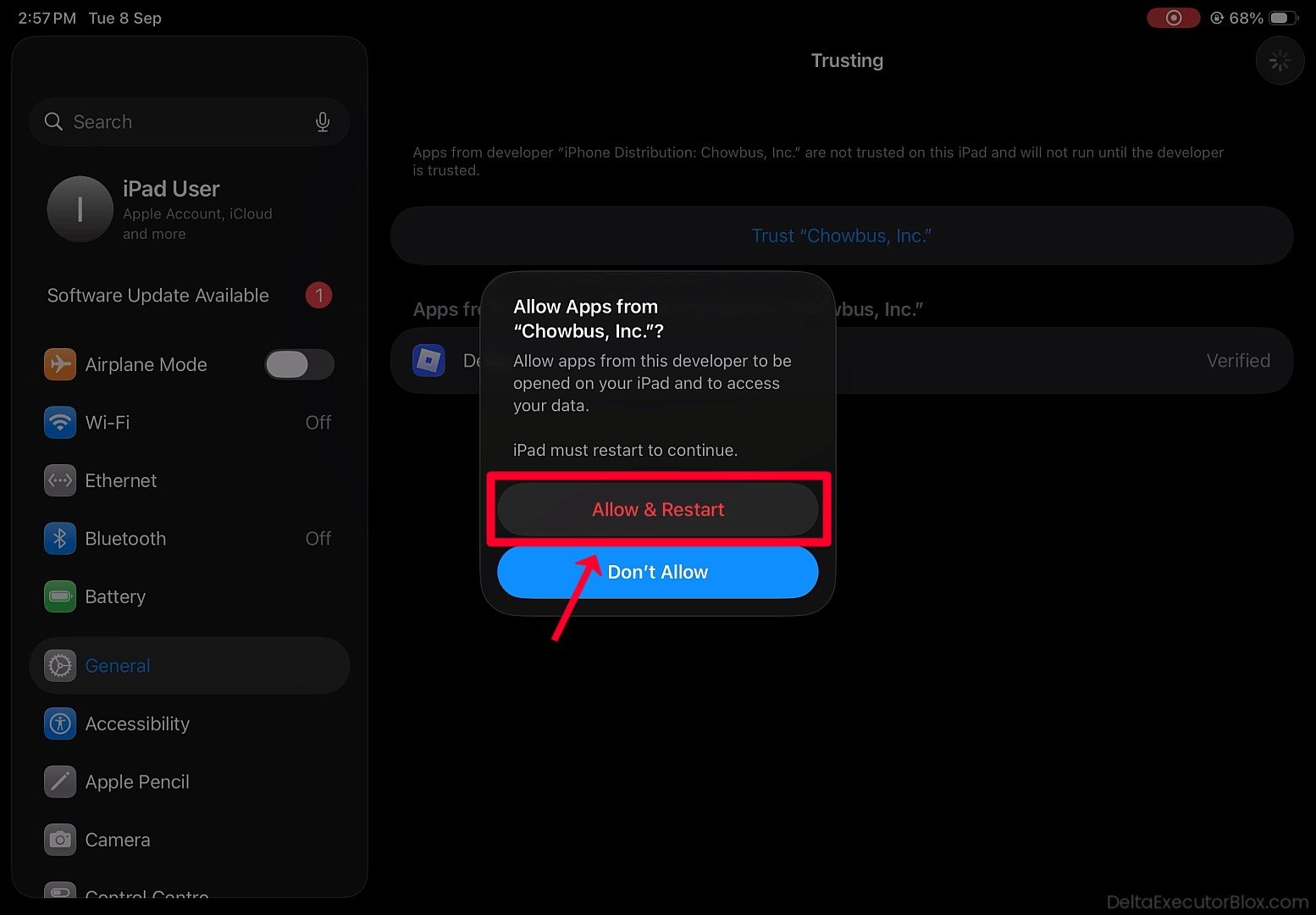
Step 11: After your iPhone or iPad restarts, follow any on-screen instructions to continue the developer profile installation or verification process.
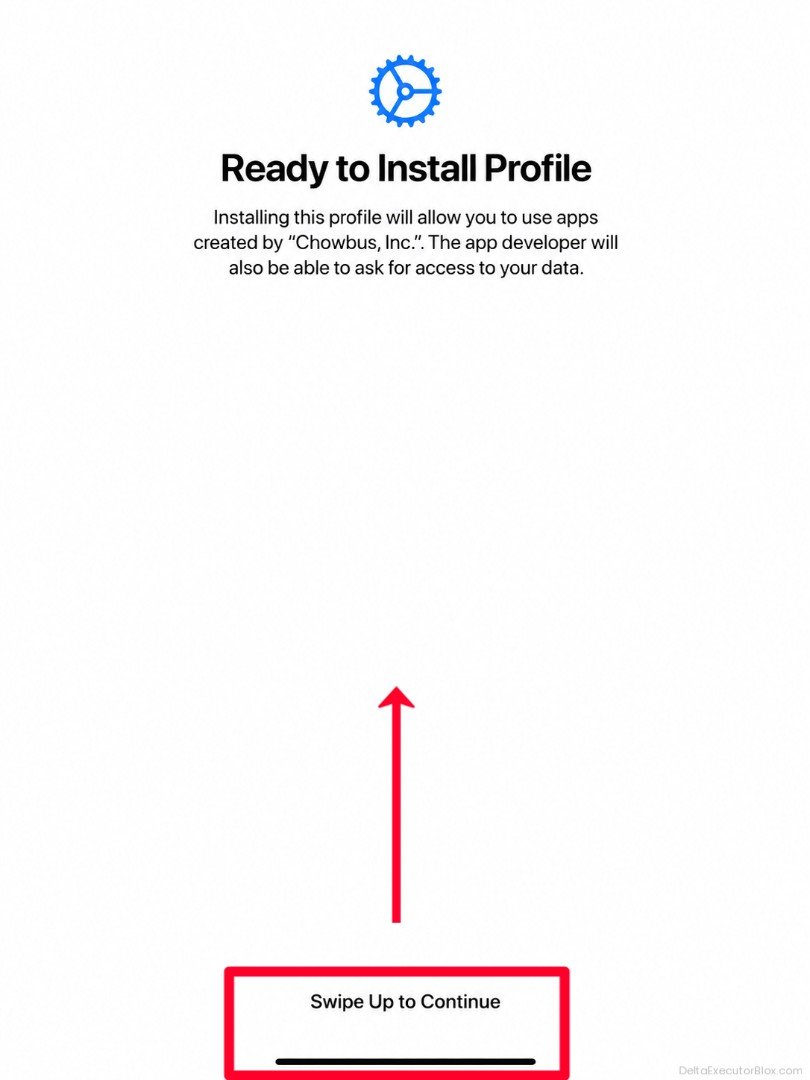
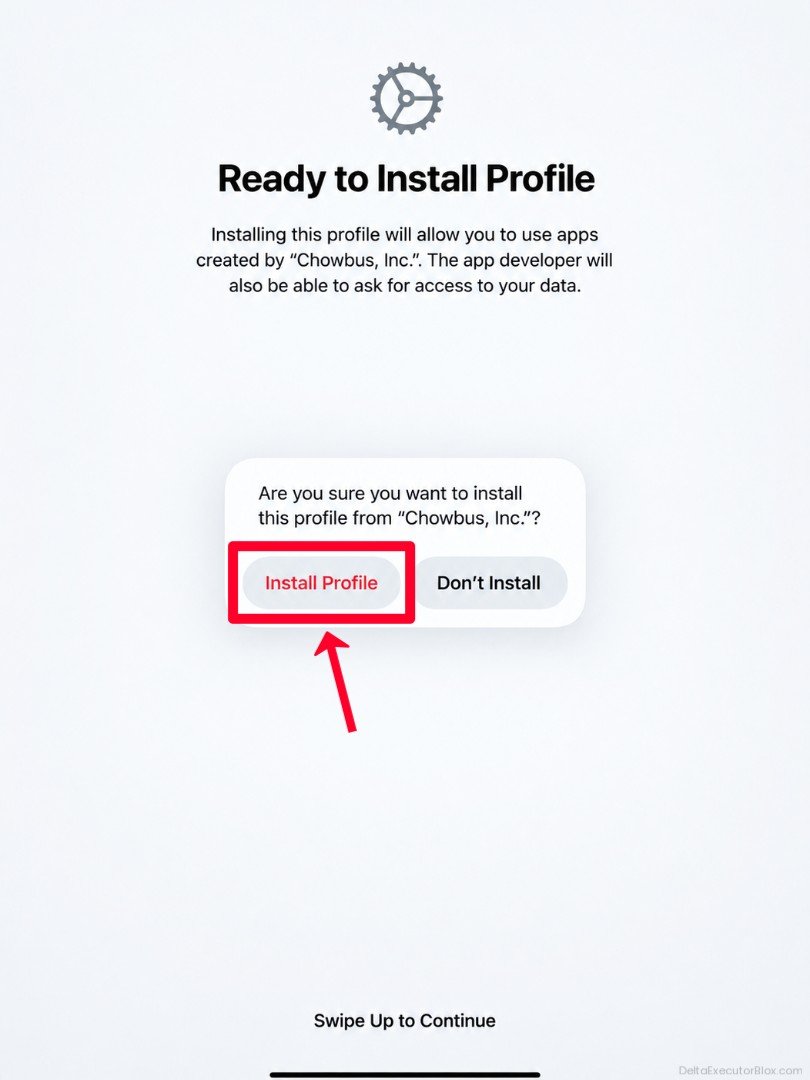
Step 12: If Install Profile option appears, tap “Install Profile” and complete the installation.
Step 13: Open Settings again.
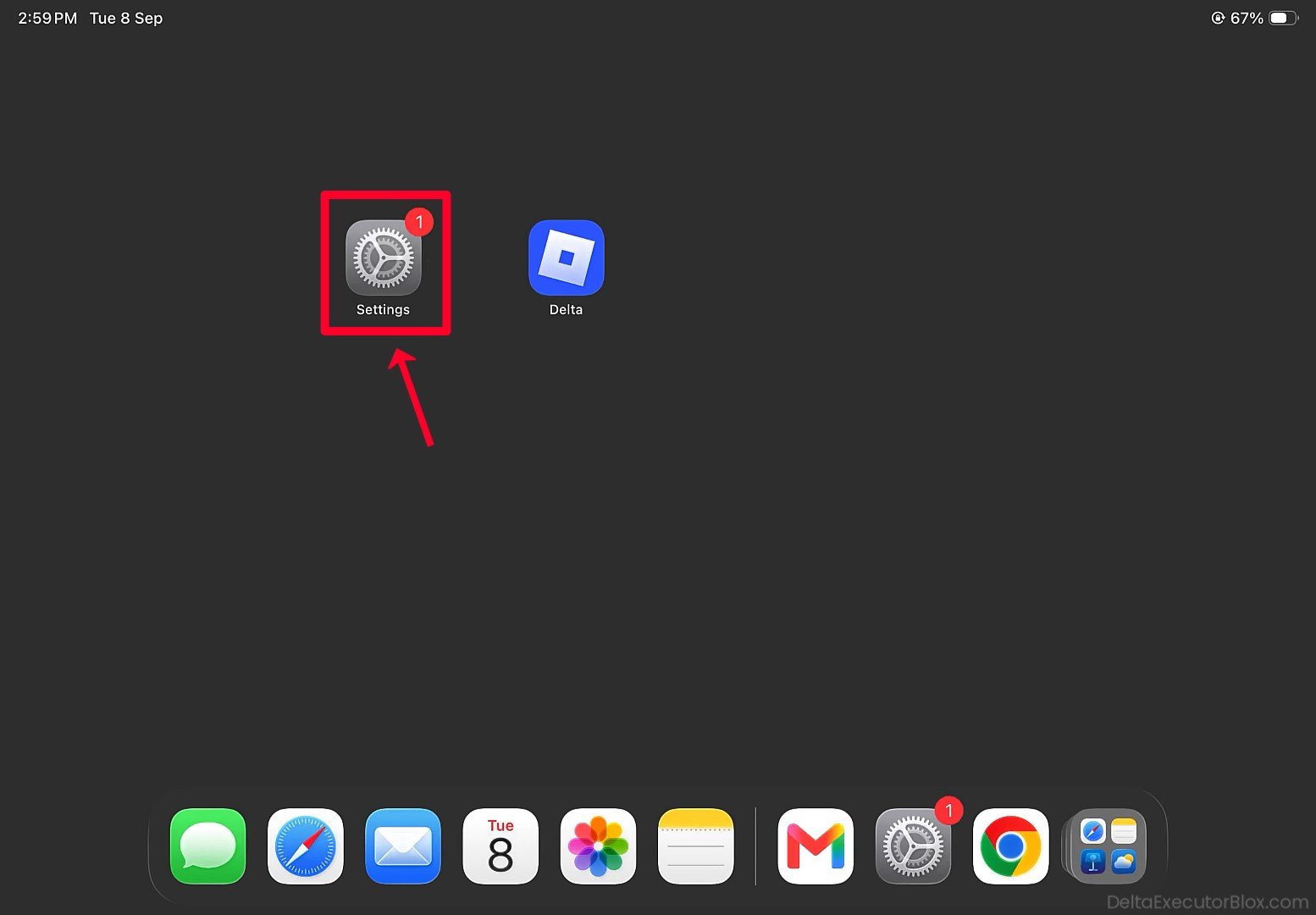
Step 14: Tap General.
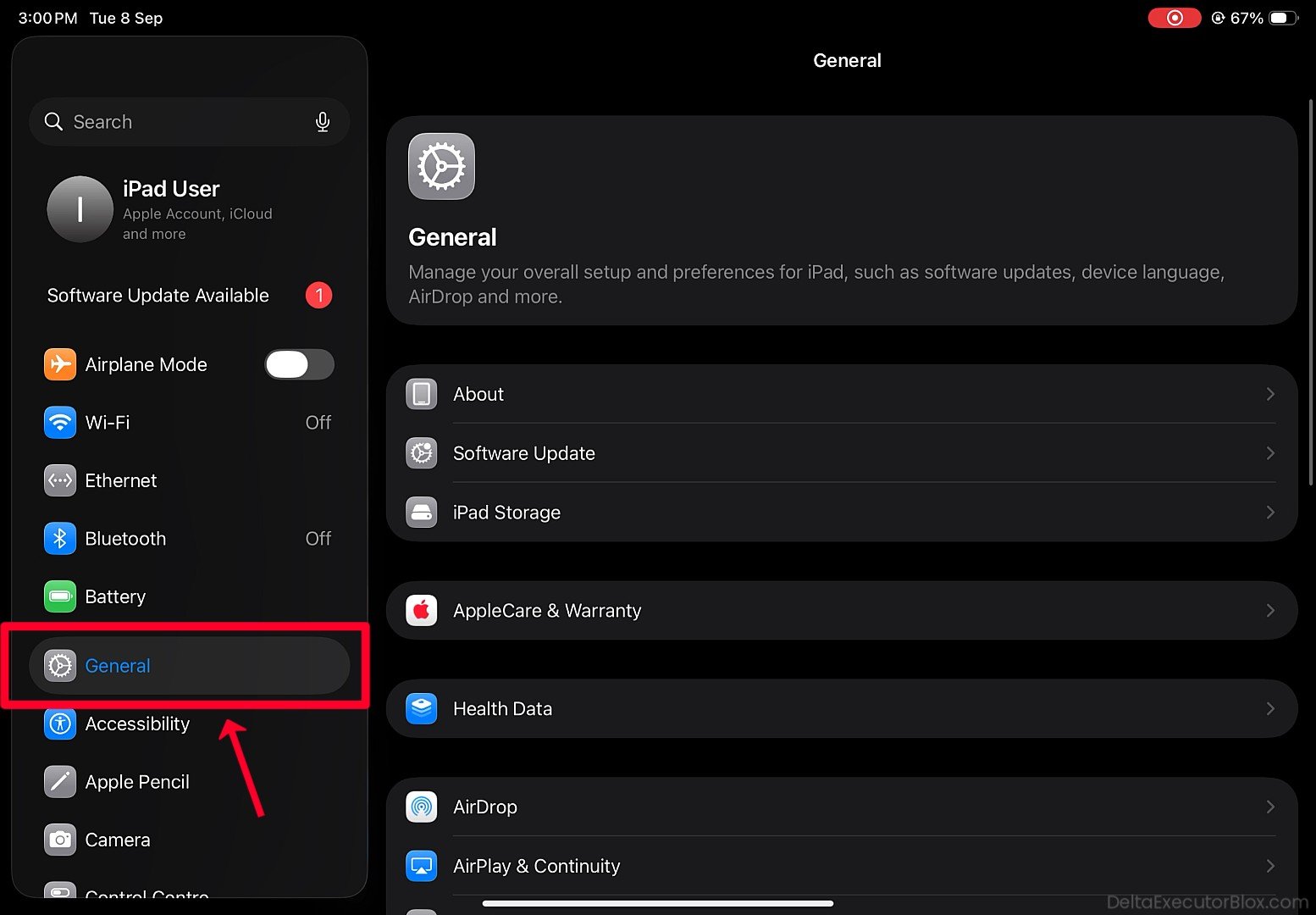
Step 15: Scroll down and tap VPN & Device Management.
Step 16: Open the developer profile associated with Delta.
Step 17: Confirm that the developer profile is now Trusted or verified.
Step 18: Open Delta iOS again and check whether “Untrusted Enterprise Developer” error has been resolved.
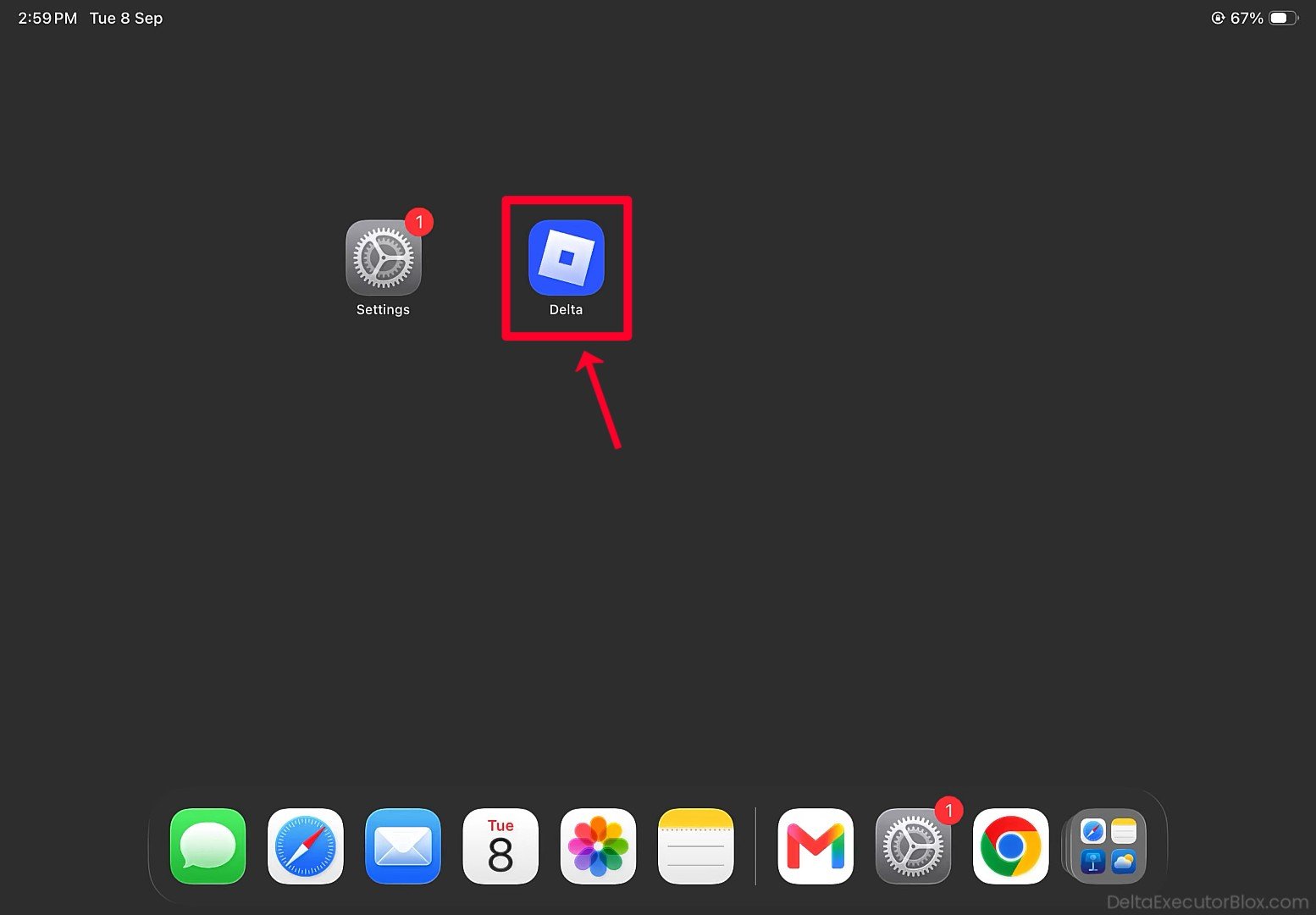
Step 19: If Delta opens successfully and Roblox screen appears, Delta iOS Untrusted Enterprise Developer error has been resolved.
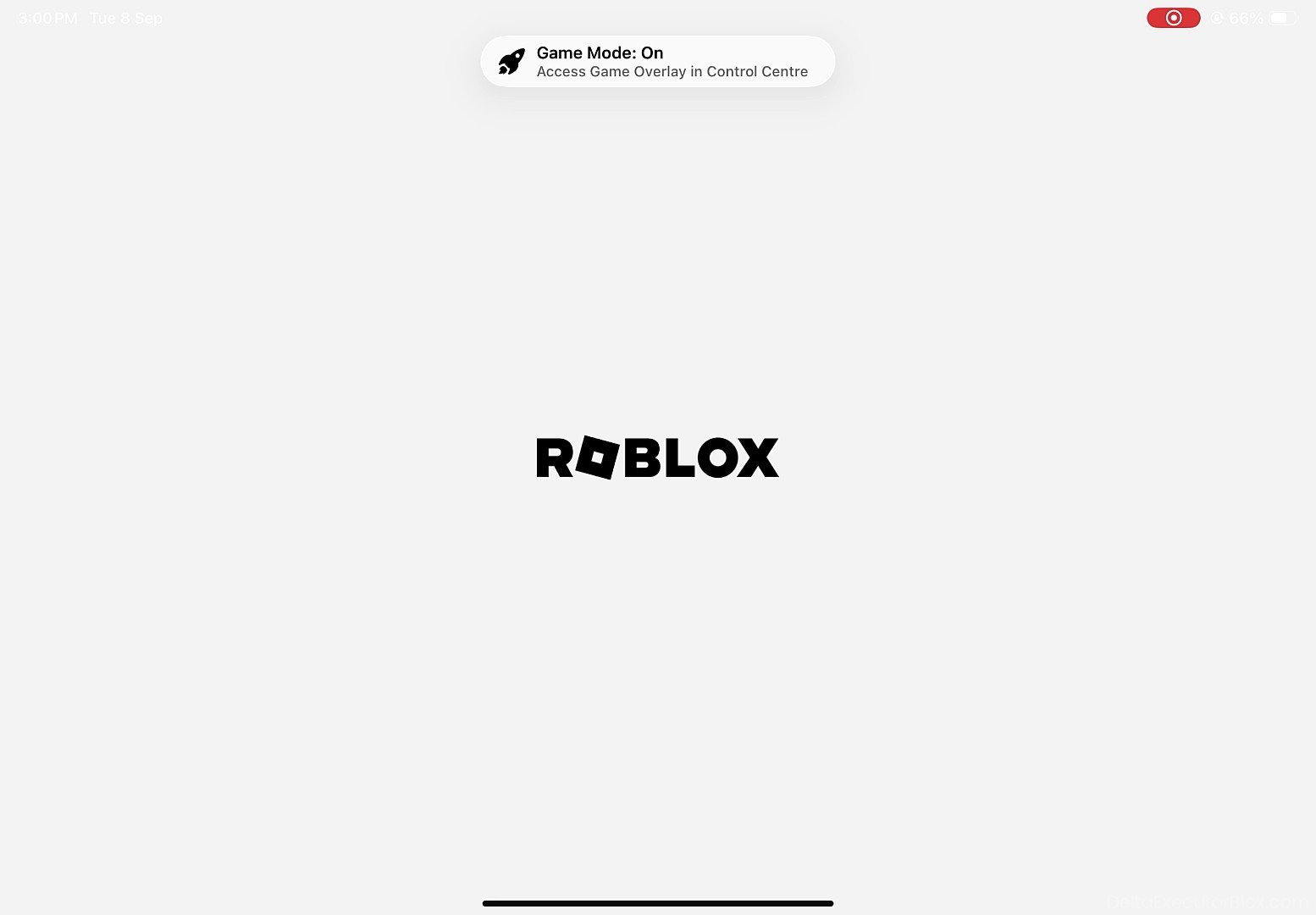
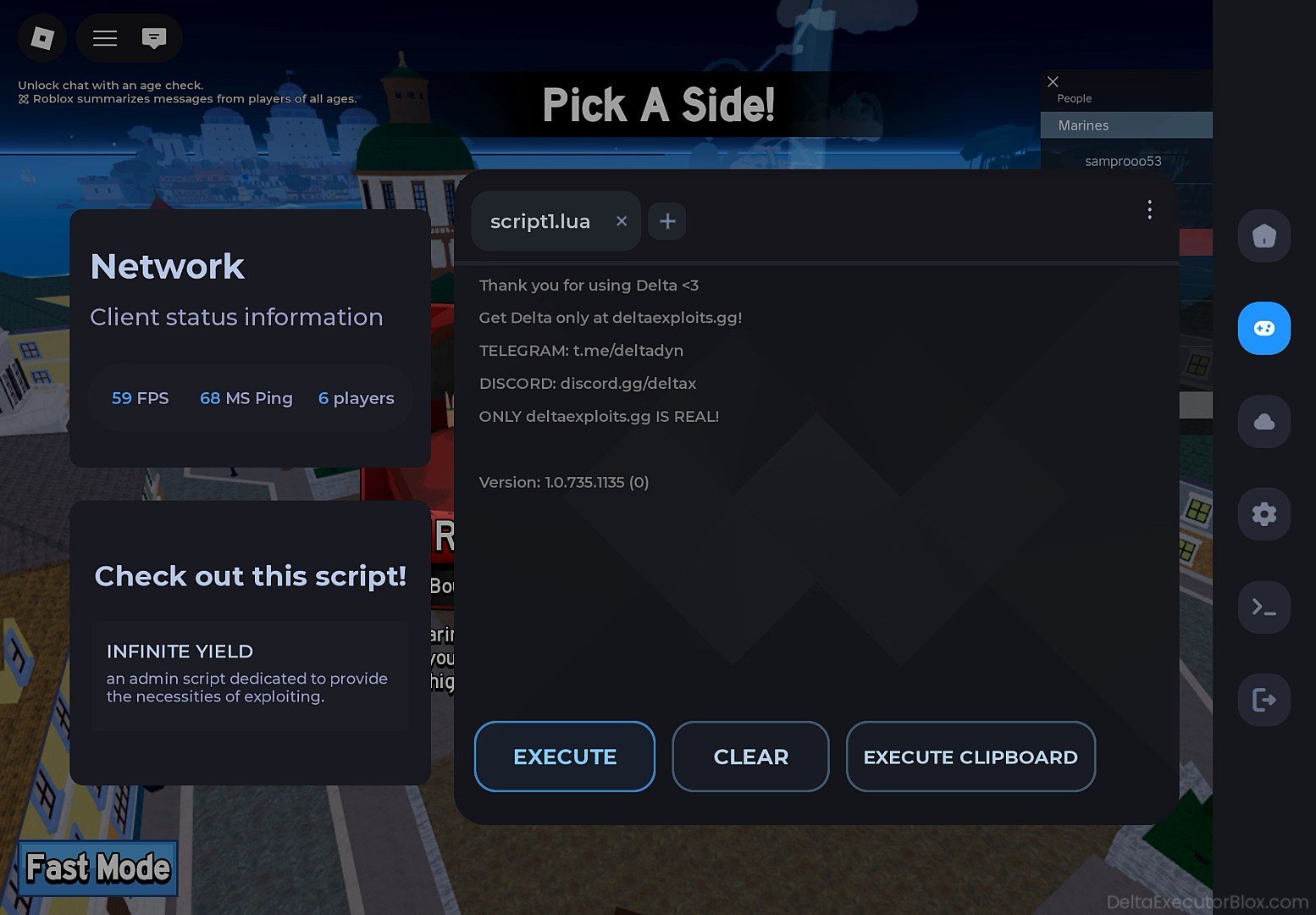
Step 20: You can now try using Delta on your iPhone or iPad without the previous developer-trust error.
Frequently Asked Questions (FAQ’s):
Q1. How do I fix “Untrusted Enterprise Developer” error on my iPhone?
Ans. Yes, you can fix Delta iOS “Untrusted Enterprise Developer” error in just a few steps. Tap “Cancel” on the error message, then go to Settings > General > VPN & Device Management. Under Enterprise App, select the developer profile associated with Delta and tap Trust. If prompted, tap Allow & Restart and wait for your iPhone or iPad to restart. After the restart, tap “Install Profile” if the option appears. Once these steps are completed, try opening Delta iOS again.
Q2. Why am I seeing this error when installing Delta Executor?
Ans. You may see “Untrusted Enterprise Developer” error because the developer or distributor of the Delta app is not officially available through the iOS App Store. To fix this issue, you may need to manually verify and trust the associated developer profile on your iPhone or iPad. Once the developer has been successfully trusted, you should be able to open Delta iOS without seeing the same error.
Q3. Is it safe to trust the developer profile for Delta?
Ans. Before trusting a developer profile to use Delta iOS, make sure you downloaded and installed Delta or its IPA file from a source you trust. Only trust a developer profile when you are confident that the app and certificate are legitimate and safe. If you are using DeltaExecutorBlox.com, verify that the download and installation instructions come from the official website before proceeding. Always review the developer name and certificate details shown on your iPhone or iPad before tapping Trust.
Q4. Does this process work the same way on an iPad?
Ans. Yes. The same steps also apply to iPad users because the developer verification and trust settings are similar on iPhone and iPad. You can follow the same process by going to Settings > General > VPN & Device Management, selecting the developer profile associated with Delta, and tapping “Trust” to verify the app.
Q5. Do I need to jailbreak my device to resolve this error?
Ans. No, you do not need to jailbreak your iPhone or iPad to fix “Untrusted Enterprise Developer” error. iOS provides built-in settings that allow users to manually verify and trust certain apps installed outside the App Store. If you have installed Delta from a source you trust, you can use “VPN & Device Management” settings to verify the associated developer profile and try opening the app again.
Q6. Why does Delta stop working suddenly even after I trusted the developer?
Ans. If Delta iOS suddenly stops working or the error appears again, there could be several reasons. The most common causes include a revoked developer certificate, an outdated version of Delta app, or the app crashing due to an installation or compatibility issue.
If the problem continues, you can also check Delta Dynamics Discord server or community channels for the latest updates, troubleshooting information, and support.
Q7. What happens if I delete developer profile from my settings?
Ans. Yes. If you remove developer profile or trust settings from your iPhone or iPad, Delta iOS may show “Untrusted Enterprise Developer” error again. In this case, you may need to reinstall Delta or re-verify the associated developer profile through Settings > General > VPN & Device Management before you can open the app again.
Q8. What should I do if “VPN & Device Management” option is missing?
Ans. If VPN & Device Management is missing from your iPhone or iPad after installing Delta, try restarting your device first. Also, make sure your iPhone or iPad is running the latest available iOS or iPadOS version. If the option is still missing, try uninstalling Delta, reinstalling the latest version, and restarting your device. Then, check Settings > General again to see if VPN & Device Management is available.
Q9. Can I avoid this error by using a computer to install Delta?
Ans. If you are using an iOS emulator on a PC and encounter “Untrusted Enterprise Developer” error while opening Delta, you can try the same developer verification process. Open Settings > General > VPN & Device Management, select the Enterprise App profile associated with Delta, and tap “Trust”. If prompted, tap “Allow & Restart” and reopen the iOS emulator after your device restarts. If the “Install Profile” option appears, tap it and complete the installation process. You can then try opening Delta iOS again in the emulator.
Q10. How can I prevent Delta from being revoked?
Ans. No, there is no guaranteed way to prevent Delta iOS from being revoked. Apple may revoke or restrict certificates used by third-party apps as part of its security measures. If the certificate associated with Delta is revoked, the app may stop working until a valid certificate is available. You may then need to reinstall Delta and manually verify and trust the new developer profile to use Delta iOS again.
Final Words:
In this blog post, we covered everything you need to know about Delta Executor iOS errors, including why “Untrusted Enterprise Developer” error occurs and how to fix it on your iPhone or iPad. We also explained the solution in simple, easy-to-follow steps, with screenshots and a video tutorial to help you complete the process.
If you still have questions about Delta iOS Untrusted Enterprise Developer error, cannot resolve the issue, or encounter another problem while installing Delta, feel free to leave a comment below. We’ll do our best to reply as quickly as possible with a helpful solution or step-by-step guide.